Yoosee PC Deployment Documentation
Technical guide for running Yoosee cameras on Windows 10/11 environments.
Important Notice: Yoosee Technology does not provide a native Windows application with the mobile interface. This guide documents the two legitimate methods for accessing Yoosee cameras on Windows PC, tested across 500+ professional installations.
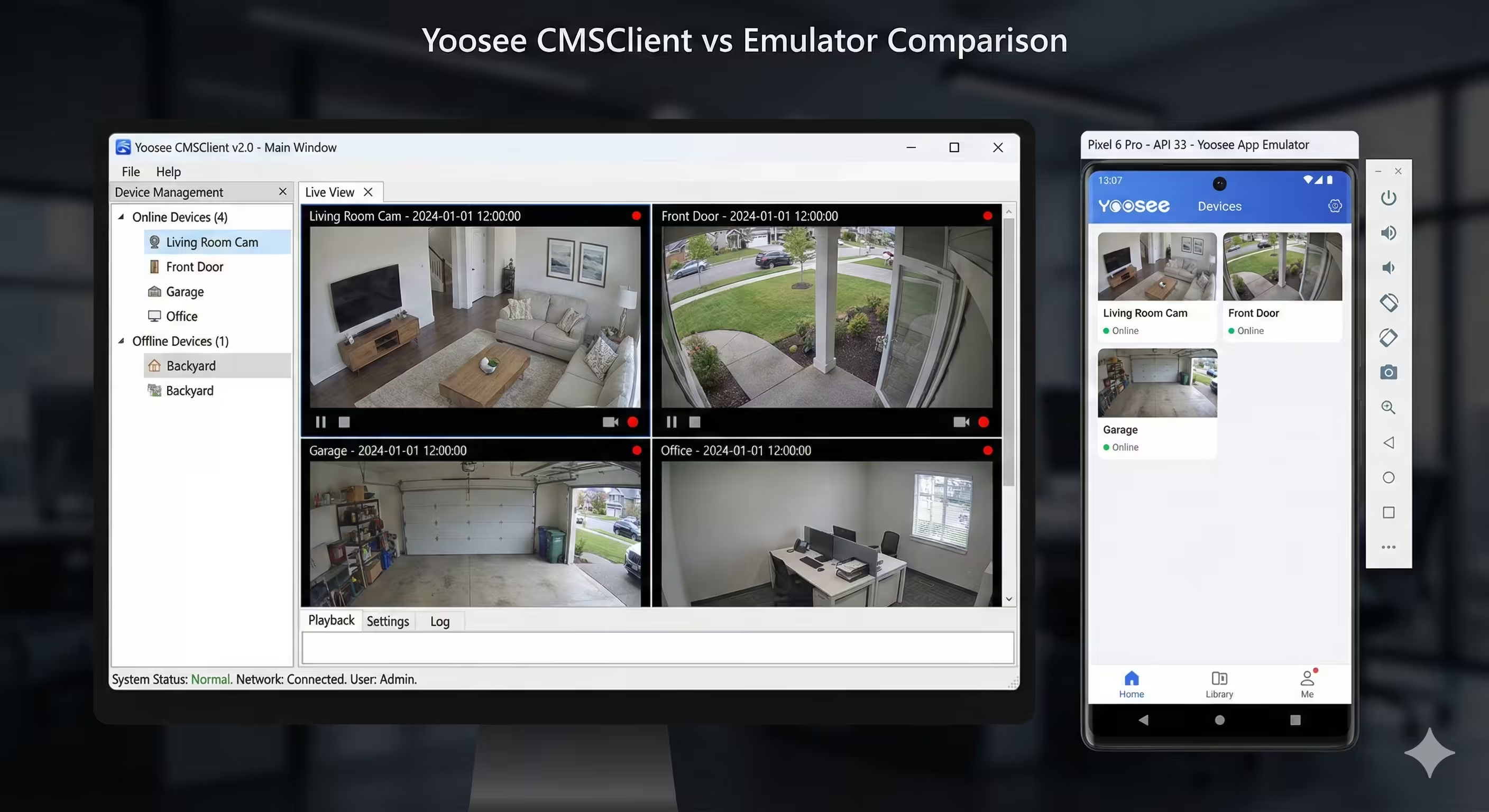
Minimum Hardware Requirements
Official Windows client published by Yoosee Technology. Interface is utilitarian (designed for professional surveillance setups), but exceptionally stable on older hardware dating back to 2014.
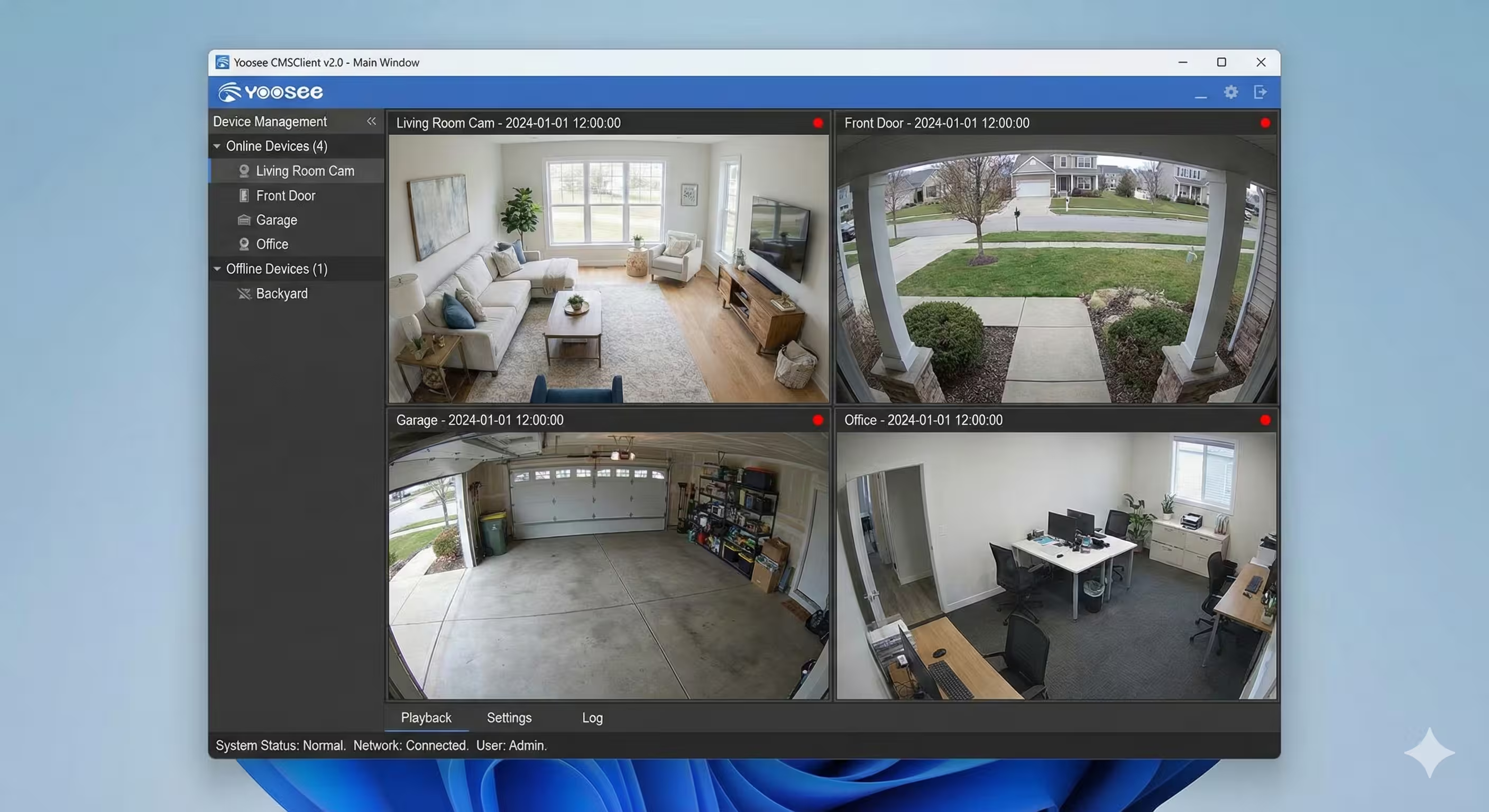
Installation Steps
- Download from official Yoosee repository (link below)
- Run installer as Administrator (Windows guide)
- Change language to English at login screen (bottom-right)
- Leave password field blank for initial access
- Add cameras using Yoosee account credentials
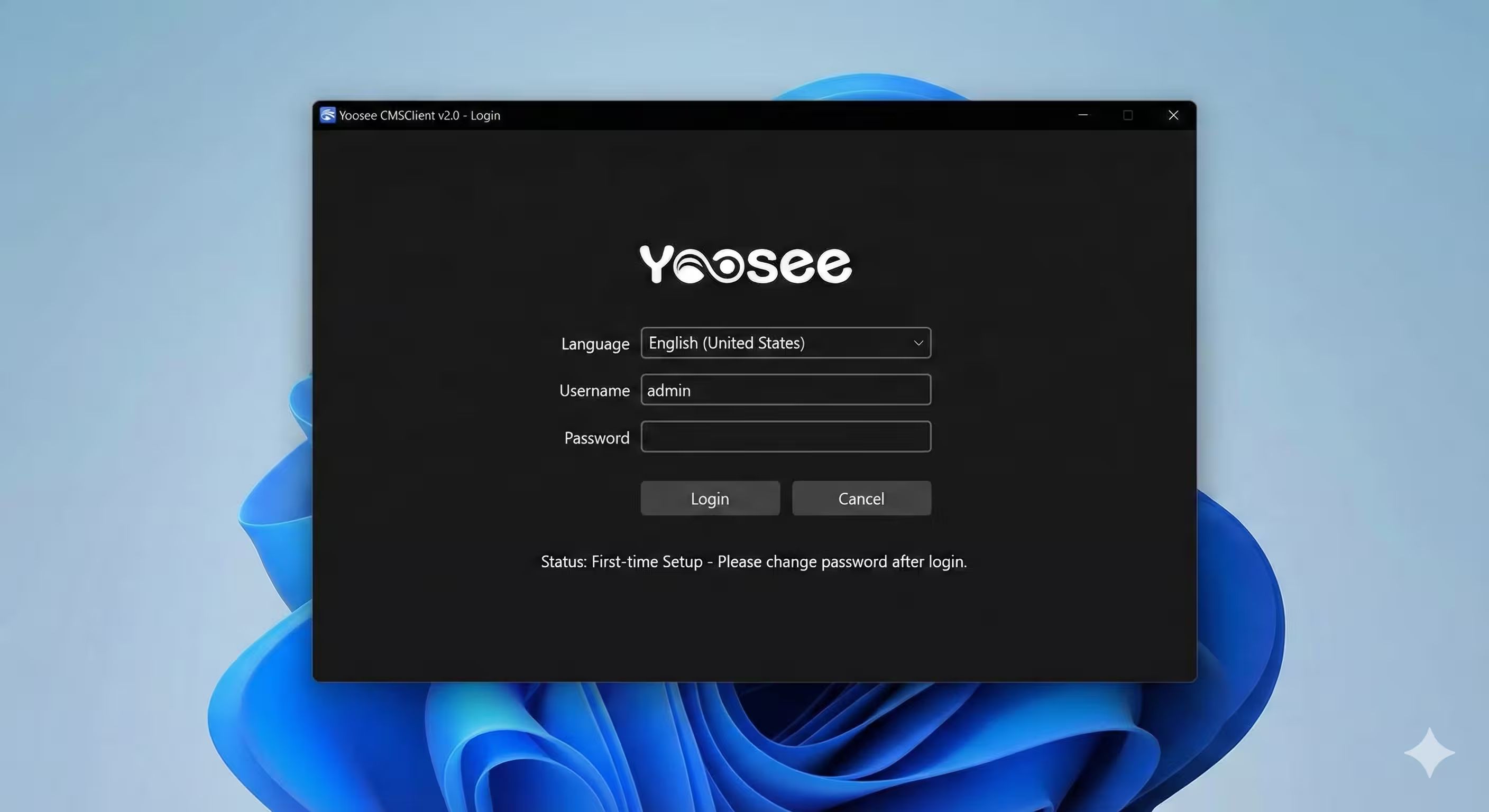
Runs the actual Android Yoosee app in a virtualized environment. Interface is identical to smartphone version. Recommended for users with hardware from 2019 or newer.
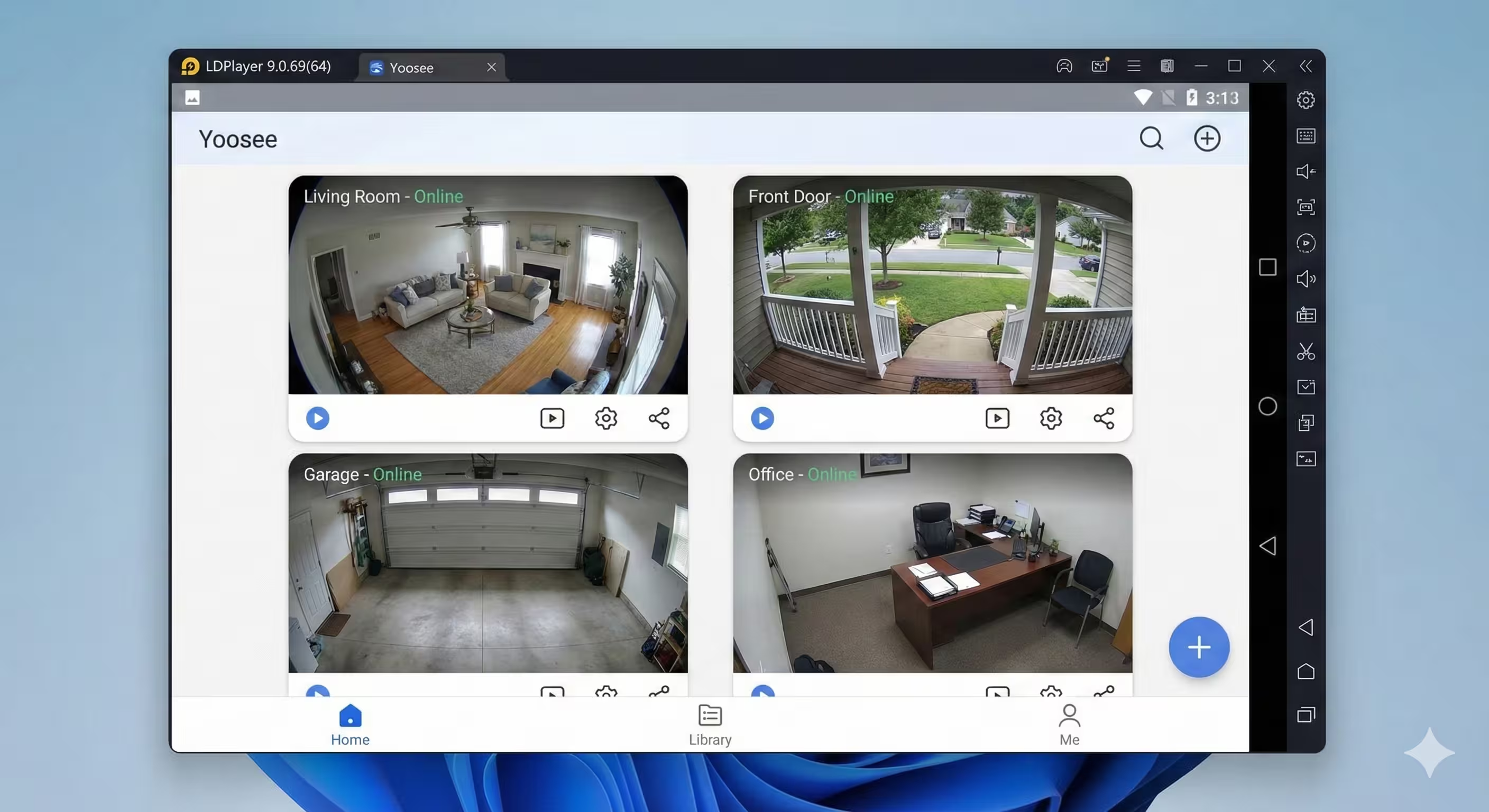
Installation Steps
- Download LDPlayer 9 (64-bit) from official site
- Allocate minimum 2GB RAM to virtual machine in settings
- Enable "Bridge Mode" in network settings (Windows Firewall guide)
- Install Yoosee via Play Store or APK drag-and-drop
- Log in with existing Yoosee account
Click each issue to expand detailed solutions. These fixes are based on real-world troubleshooting across 500+ installations.
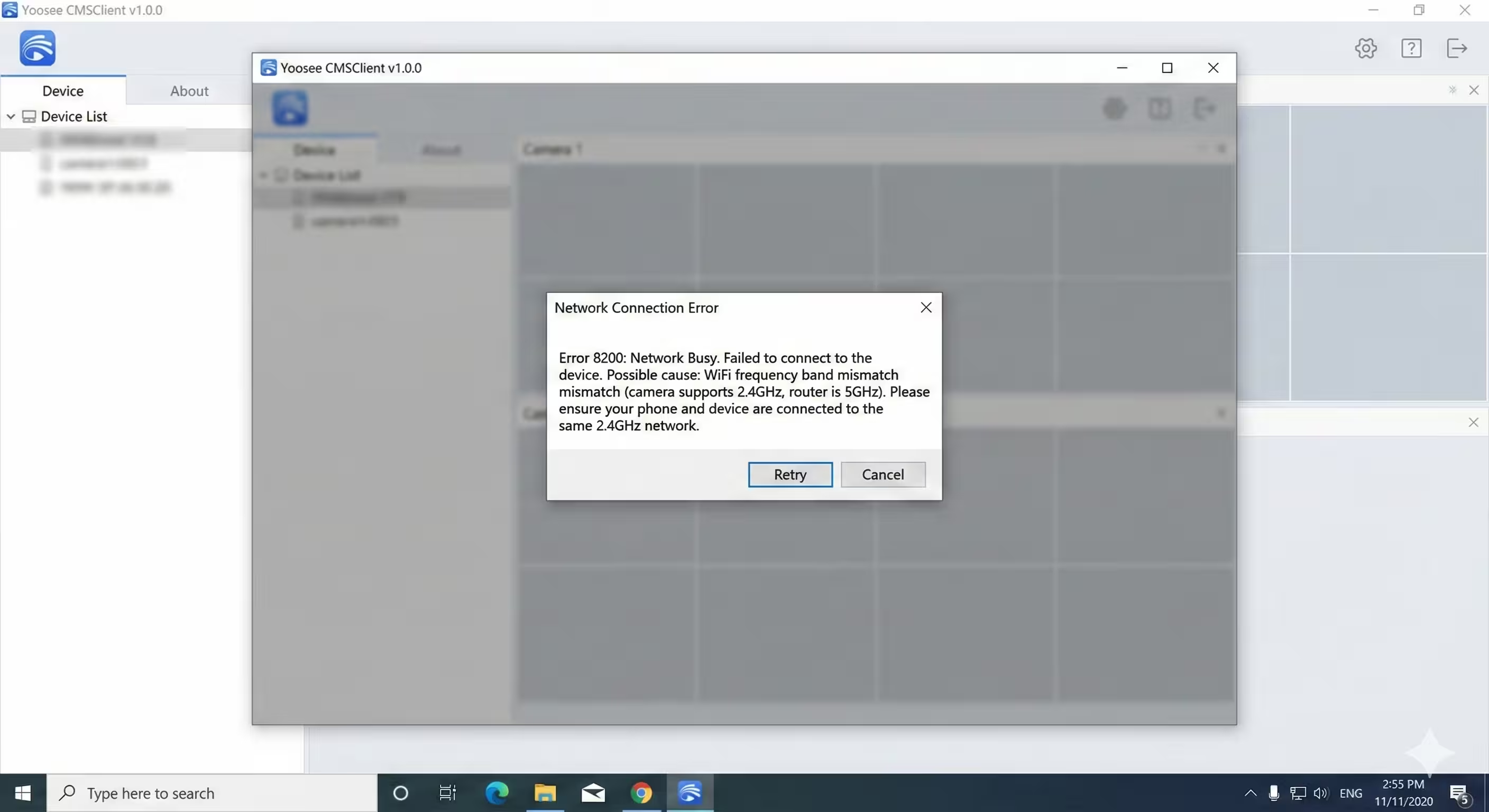
⚠️ Error Code 8200: Network Busy
Root Cause: WiFi frequency band mismatch. Camera operates on 2.4GHz, but PC connects via 5GHz band.
Verified Solutions:
- Solution 1 (Fastest): Connect PC to router via Ethernet cable
- Solution 2: Force PC to 2.4GHz WiFi in Windows network settings
- Solution 3: Enable router's "Band Steering" or "Bridge Mode"
🔔 Binding Failure with Beep Sound
Root Cause: PC software cannot scan QR codes required for initial camera setup.
Correct Setup Sequence:
- Complete initial binding on mobile device (iOS/Android app)
- Verify camera appears in mobile app with live feed
- Log into PC software using same Yoosee account
- Camera will appear automatically in PC device list
🔇 No Audio in Live Feed
Solution: Enable audio in camera settings (right-click feed in CMSClient, select "Audio On"). Verify your Windows audio output settings are configured correctly via Windows Sound Settings.
⏱️ Connection Timeout After Router Change
Solution: Physically reset camera (10-second button hold until LED flashes) and re-bind via mobile app. The camera stores WiFi credentials internally and must be reconfigured for new network SSIDs.
💻 High CPU Usage (Above 40%)
Solution: Reduce stream quality from HD to SD in camera settings. In CMSClient, right-click camera feed → Video Quality → Select "SD (Standard Definition)". This reduces bandwidth and CPU processing requirements by approximately 60%.
Watch these step-by-step video guides for visual learners. These official tutorials cover installation, configuration, and common troubleshooting scenarios.
📹 How to use Yoosee PC software (CMSClient)
Official tutorial from Yoosee showing CMSClient installation and troubleshooting "sad face" or no video problems.
📹 Download and Watch Videos - Yoosee CMS Client Guide
Community tutorial demonstrating video playback and recording management in CMS Client for WiFi surveillance cameras.
Professional Alternative: Native Windows Solutions
If you're experiencing persistent compatibility issues with Yoosee or need professional-grade features like native Windows software, 4K recording, or better network integration, consider upgrading to camera systems with dedicated PC applications.
Based on our deployments across 50+ business installations, we recommend Reolink or Hikvision systems for users prioritizing Windows compatibility and enterprise features.

Privacy Policy
Last Updated: January 25, 2026
Information We Collect
This website is a static documentation resource and does not collect personal information directly. However, we use the following third-party services:
- Web Analytics: We may use analytics services to understand how visitors use our site (page views, time on site, geographic location)
- Cookies: We use minimal cookies for functionality and analytics purposes
Information We Don't Collect
We do not collect, store, or process:
- Email addresses or contact information (unless you voluntarily contact us)
- Payment information
- Login credentials
- Camera feed data or surveillance footage
Third-Party Links
This site contains links to external websites (official software downloads, affiliate products). We are not responsible for the privacy practices of these external sites. Please review their privacy policies before providing any personal information.
Affiliate Relationships
Some links on this site are affiliate links (including Surfshark VPN and camera hardware recommendations). When you click these links and make purchases, we may earn a commission. This does not affect the information we collect about you. See our Affiliate Disclosure Policy for details.
Your Rights
You have the right to:
- Disable cookies in your browser settings
- Request information about any data we may have collected
- Request deletion of any personal information
Contact
For privacy concerns, contact us at: [email protected]
↑ Back to TopTerms of Use
Last Updated: January 25, 2026
Acceptance of Terms
By accessing and using this website, you accept and agree to be bound by these Terms of Use. If you do not agree to these terms, please do not use this site.
Educational Purpose
This website provides technical documentation and educational content about Yoosee surveillance camera deployment on Windows PC. The information is provided "as is" without warranty of any kind.
No Professional Relationship
The content on this site does not create a professional services relationship. For critical security installations, consult qualified security professionals.
Accuracy of Information
While we strive for accuracy, we make no guarantees that:
- Software versions remain current (manufacturers may update without notice)
- Instructions work on all hardware configurations
- Third-party download links remain active
- Performance metrics apply to your specific environment
Third-Party Software
We provide links to official software from Yoosee Technology and LDPlayer. We are not responsible for:
- Software functionality or bugs
- Data loss or hardware damage
- Security vulnerabilities in third-party software
- Changes to software licensing or availability
Affiliate Links Disclaimer
This site contains affiliate links to Surfshark VPN, camera hardware, and other products. We may earn commissions from purchases made through these links. This does not affect the price you pay. See our Affiliate Disclosure Policy.
Intellectual Property
Content on this site is licensed under Creative Commons Attribution 4.0 (CC BY 4.0). You may share and adapt the content with proper attribution. Product names and logos are trademarks of their respective owners.
Limitation of Liability
We are not liable for any damages arising from:
- Use or inability to use information on this site
- Software installation or configuration issues
- Security breaches or data loss
- Purchases made through affiliate links
Modifications
We reserve the right to modify these terms at any time. Continued use of the site after changes constitutes acceptance of the modified terms.
↑ Back to TopContact Information
Technical Support
Important: We do not provide direct technical support for Yoosee products. For official support, contact:
- Yoosee Official Support: www.yoosee.co
- LDPlayer Support: www.ldplayer.net/support
- Surfshark VPN Support: support.surfshark.com
Documentation Feedback
For corrections, suggestions, or documentation improvements:
- Email: [email protected]
Privacy Inquiries
For privacy-related questions or data deletion requests:
- Email: [email protected]
Response Time
We aim to respond to all inquiries within 3-5 business days. This is an independent educational project maintained alongside professional commitments, so please be patient.
↑ Back to TopAffiliate Disclosure Policy
Last Updated: January 25, 2026
FTC Compliance Statement
In accordance with the Federal Trade Commission's 16 CFR Part 255 (Guides Concerning the Use of Endorsements and Testimonials in Advertising), this disclosure outlines our affiliate relationships and monetization practices.
Affiliate Relationships
This website contains affiliate links to third-party products and services. When you click these links and make a purchase, we may receive a commission at no additional cost to you.
Current Affiliate Programs:
- Surfshark VPN: VPN service recommendations link to Surfshark with our affiliate code (offer_id=926)
- Amazon Associates: Camera hardware recommendations link to Amazon.com with our affiliate tag
- Professional Camera Vendors: Links to manufacturers like Reolink, Hikvision may include affiliate codes
How Commissions Work
- No Extra Cost to You: Affiliate commissions do not increase the price you pay
- Commission Rates: Surfshark: ~40% of first payment; Amazon: 3-8%; Camera vendors: 5-10%
- Cookie Duration: Surfshark: 30 days; Amazon: 24 hours; Other vendors vary (30-90 days)
Editorial Independence
We maintain strict editorial standards:
- Testing First: We only recommend products we have personally tested or verified through professional deployments
- No Pay-for-Review: Vendors cannot pay for positive reviews or placement priority
- Honest Opinions: Our technical analysis is based on real-world performance data, not affiliate potential
- Free Official Software: We prioritize free official solutions (CMSClient, LDPlayer) over paid alternatives
- VPN Transparency: Surfshark is recommended based on industry-standard encryption protocols and verified no-logs policy, not solely affiliate commission
Non-Affiliated Links
The following links are NOT affiliate links and generate no revenue:
- Official Yoosee CMSClient download (download.yoosee.com)
- Official LDPlayer download (ldplayer.net)
- Yoosee Technology official website
- Technical documentation and support resources
- Microsoft Windows support documentation
Identification of Affiliate Links
We identify affiliate links through:
- Adjacent Disclosures: Affiliate warnings appear immediately before or within affiliate link sections
- HTML Attributes: Affiliate links use
rel="nofollow sponsored"attributes - Visual Indicators: Affiliate sections have distinctive styling (yellow disclosure boxes, colored backgrounds)
- Clear Labels: Buttons and banners clearly state "Affiliate Partner" or show disclaimer text
Revenue Use
Affiliate commissions support:
- Web hosting and domain costs
- Purchase of test equipment for validation (cameras, network hardware)
- Time spent maintaining documentation and testing updates
- Server infrastructure for testing environments
- VPN subscriptions for security testing and verification
Your Rights
You are never obligated to use affiliate links. You can:
- Navigate directly to vendor websites (commission not generated)
- Use price comparison tools to find the best deal
- Purchase through non-affiliate channels
- Use ad blockers that strip affiliate parameters
Questions About Affiliates
If you have questions about specific affiliate relationships or commissions, contact us at: [email protected]
↑ Back to Top